


Usage guide
How do I use the button?
If you receive a suspicious email in your University of Toronto inbox, follow these steps:
- Do not interact with the email. Do not click on links, open attachments, provide personal information, or forward the message.
- In Microsoft Outlook, select the U of T Report Phishing button.
- Provide any additional information, then select Close and Delete.
If you cannot access the Report Phishing button, forward the email to report.phishing@utoronto.ca, then delete it from your inbox.
If you interacted with the sender, clicked on a link, or opened an attachment, contact security.response@utoronto.ca immediately.
Where do I find the button?
The Report Phishing icon is an open blue envelope with a red warning symbol. Use the instructions below to access the Report Phishing button on your system.
When viewing an email, the Report Phishing button appears in two locations:
- In the Home ribbon near the top of the Outlook window
- In the upper-left corner of the email message

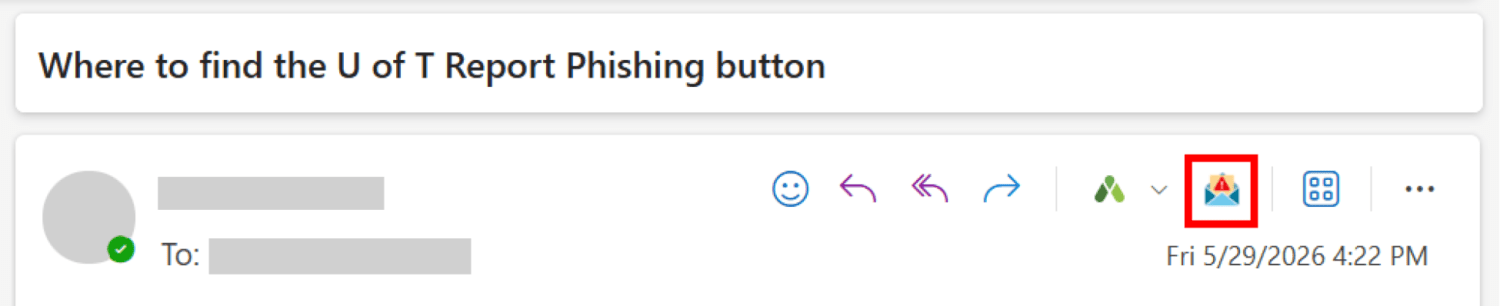
When viewing an email, select the three-dot (More actions) menu in the toolbar to access the Report Phishing button.

When viewing an email, select the three-dot menu in the upper-right corner, then scroll to the bottom of the menu to find the Report Phishing button.
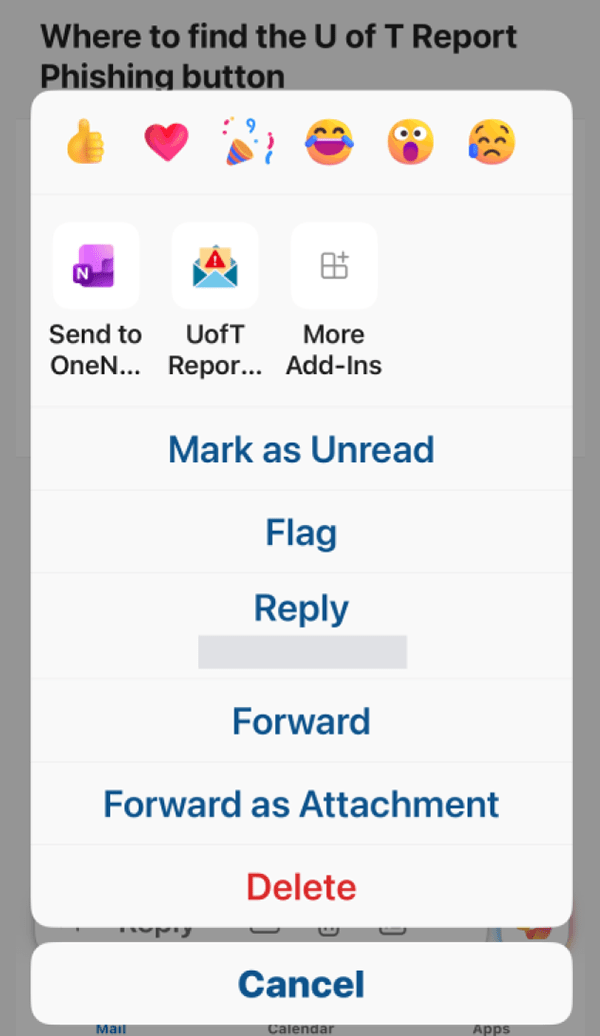
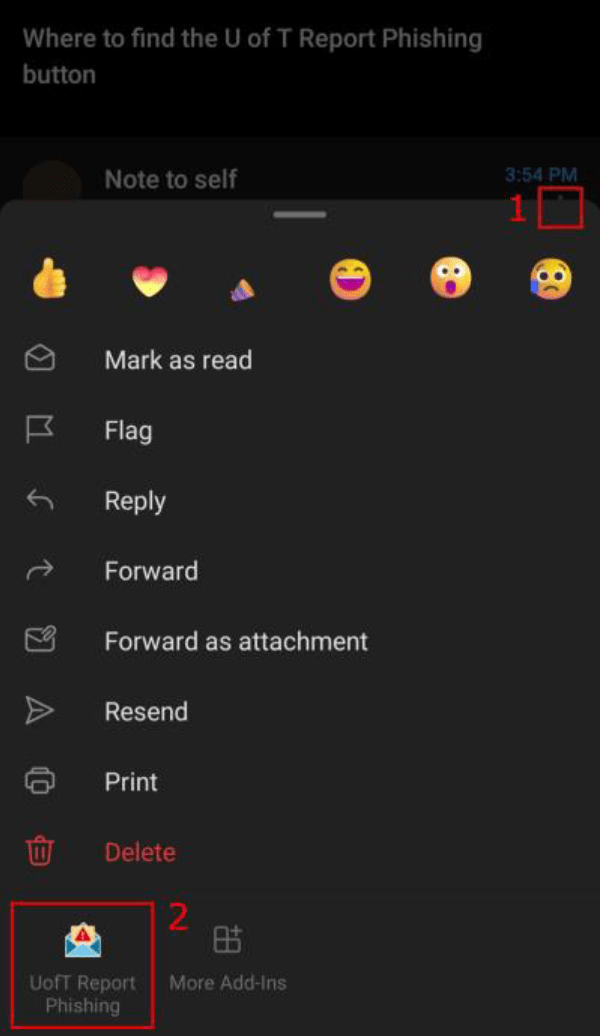
If you cannot access the Report Phishing button, forward the email to report.phishing@utoronto.ca and then delete it.
Last modified: August 6, 2026